Members, approvals and linking children
Approve new members and link each parent to the right child.
For coaches & admins
- New members wait in Team → Members until you approve them.
- Check a parent is linked to the right child before you approve. AHNA warns when an account looks like a duplicate.
- Tap ⋯ beside + for Search players and parents, No parent connected and each group. A Showing… line with Clear appears while a filter is on.
- ⋮ next to a person has Send message and their settings (for example Kit helper settings).
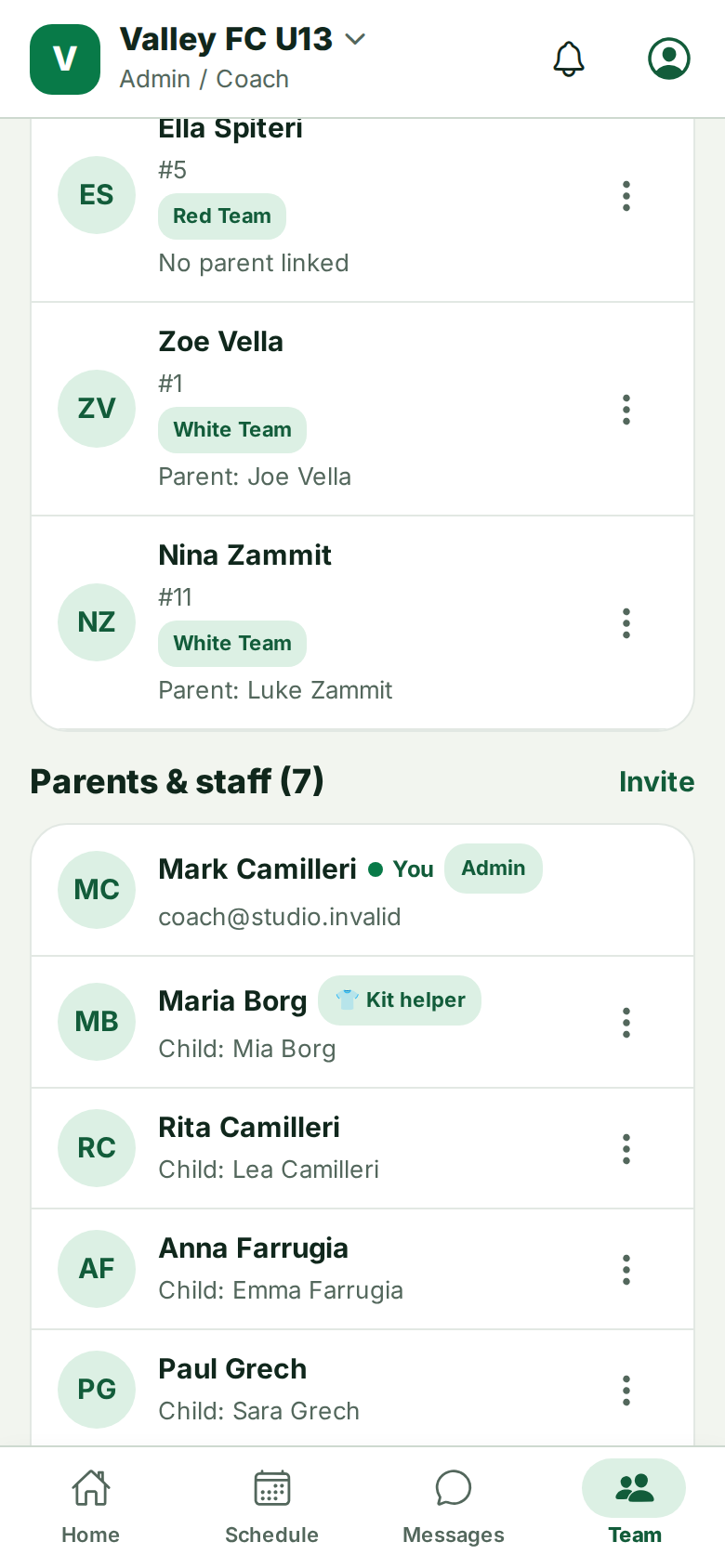
Parents do not need to add children who are already on the list. If a duplicate child appears, link the parent to the original and remove the copy.
Still stuck? Write to support@ahna.app.