Add AHNA to your phone
One minute, once. AHNA then opens from an icon like any app and tells you about trainings, matches and changes.
iPhone (Safari)
Notifications on iPhone only work once AHNA is on your Home Screen, so please do this first.
- Open your AHNA invitation in Safari. If it opens inside WhatsApp or another browser, look in its menu or Share options for Open in browser or Open in Safari. If neither appears, copy the invitation link and paste it into Safari's address bar. Copy the full link so your invitation is kept. Without an invitation, open app.ahna.app.
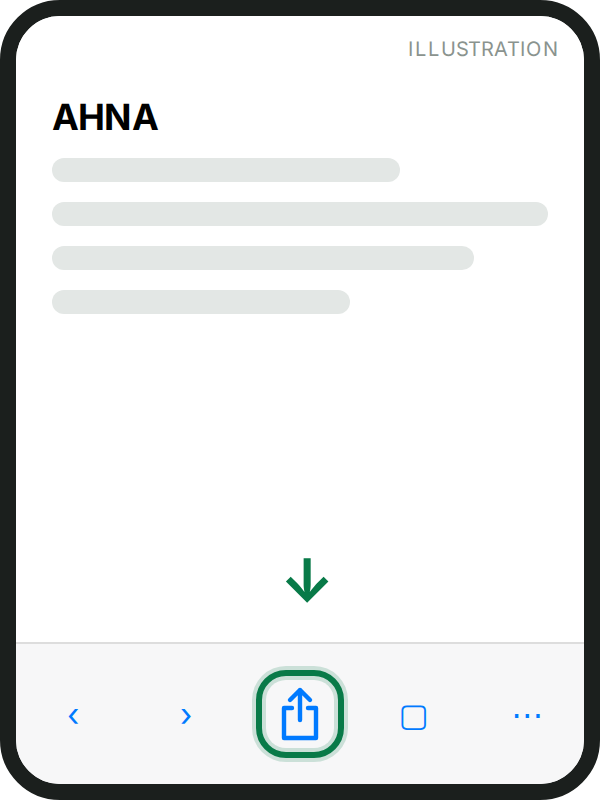
- Tap the Share button (the square with an arrow pointing up) at the bottom of the screen.
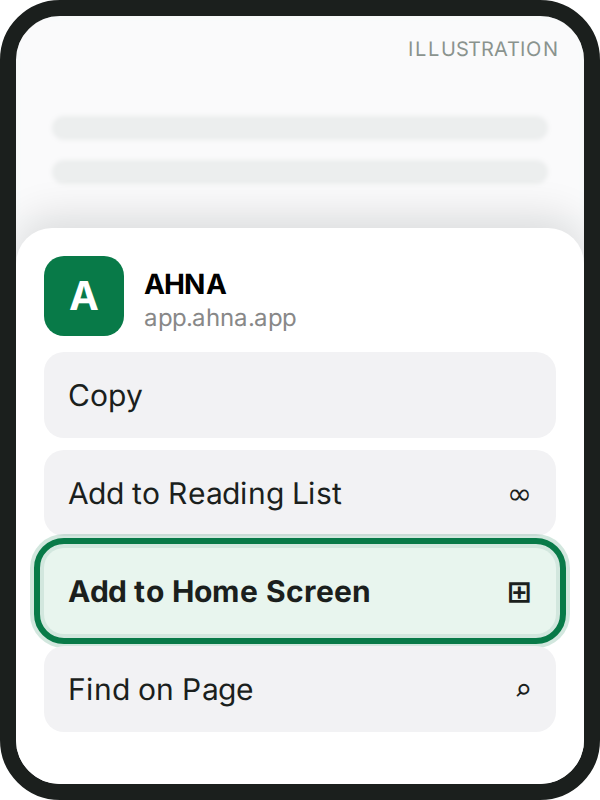
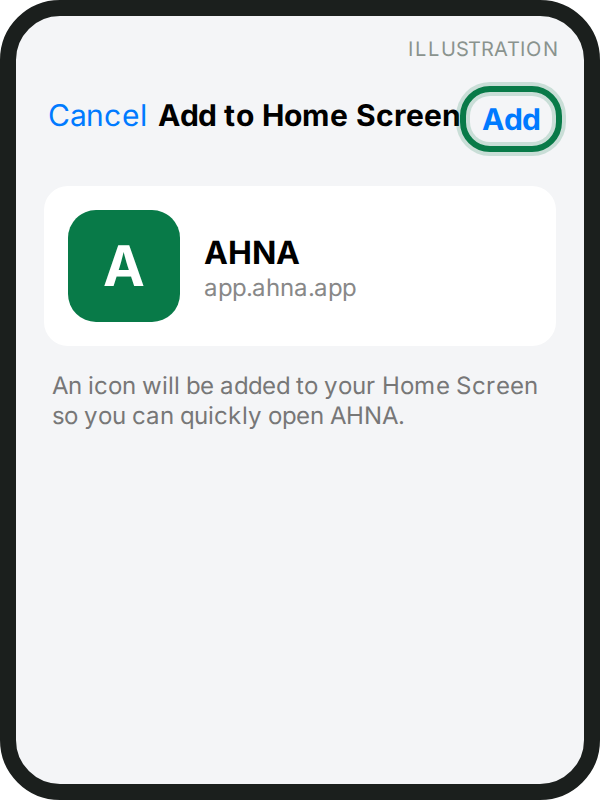
- Scroll down and tap Add to Home Screen, then Add.
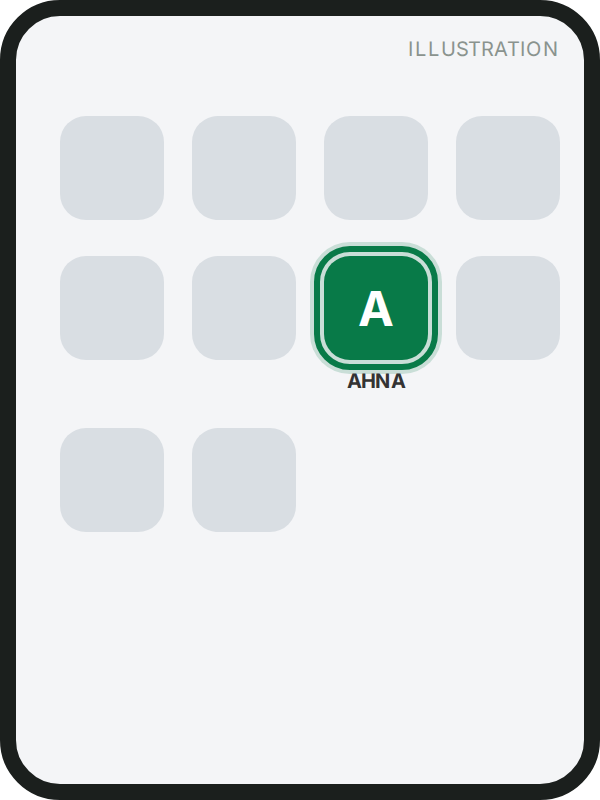
- Close Safari and open AHNA from the new icon on your Home Screen.
- Sign in or create your account, join with the team code, and tap Allow when AHNA asks to send notifications.
Android (Chrome)
- Open your AHNA invitation in Chrome. From WhatsApp, use Open in browser if available, or copy the full invitation link and paste it into Chrome's address bar. Without an invitation, open app.ahna.app.
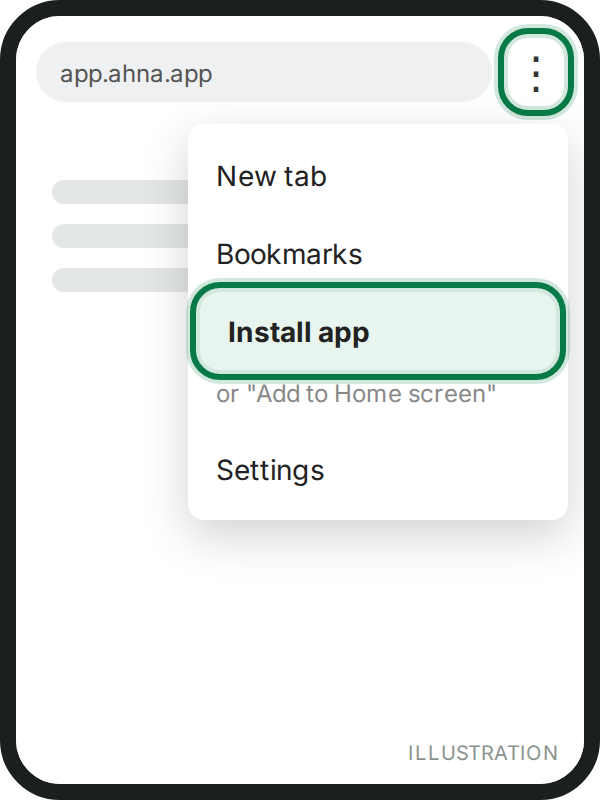
- Tap the ⋮ menu at the top right, then Install app or Add to Home screen.
- Open AHNA from the new icon.
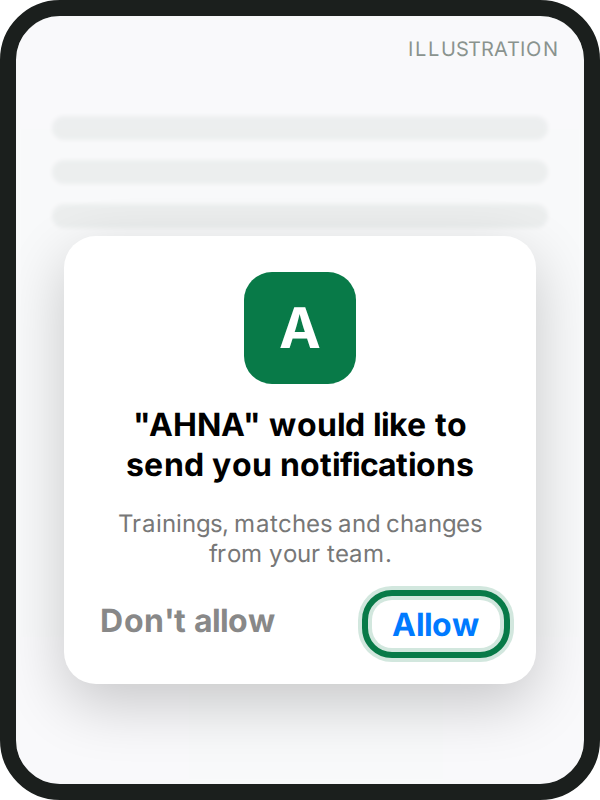
- Sign in or create your account, join with the team code, and tap Allow for notifications.
Joining your team
- Choose Join a team and type the team code your coach sent.
- Choose Parent and tick your child on the list (or add them if they are not there).
- Your coach approves you, and you get a You're in! message. Until then you can look around.
Not getting notifications?
- iPhone: make sure you open AHNA from the Home Screen icon, not from Safari.
- Check your phone's settings allow notifications for AHNA (iPhone: Settings → Notifications → AHNA; Android: Settings → Apps → AHNA or Chrome → Notifications).
- In AHNA: your picture → Notifications.
Still stuck? Write to support@ahna.app.